How to Turn Off Two-Factor Authentication on Facebook Without Logging In
-
By Farrukh Mushtaq
Farrukh Mushtaq
 See author profile
Farrukh Mushtaq, a digital marketer at PureSquare, possesses a keen interest in cybersecurity and enjoys writing about it. With several years of experience in the digital marketing industry, he brings expertise and passion to his work.
-
16 April 2024
-
6 mins read
Table of Content
Table of Contents
- How to Prevent Yourself from Getting Locked Up with Two-Factor Authentication
- How to Deactivate Two-Factor Authentication on Facebook Without Preferred Device
- How to Bypass Two Factor Authentication If Youâre Locked Out
- How to Recover Your Facebook Account Without Logging In Through Two-Factor Authentication
- Frequently Asked Questions (FAQs)
- Got Your 2FA Turned Off?
Two-factor authentication can be a hassle at times. Sometimes, you lose your phone, and sometimes, you can not just pass it.
But, removing two-factor authentication can expose you to prying eyes and malicious actors.
Find out how you can turn off two-factor authentication without ever logging in to your Facebook account.
How to Prevent Yourself from Getting Locked Up with Two-Factor Authentication
This requires some prerequisite settings to prevent hassle. Here’s what you need to do:
- Click your profile picture, tap Settings and Privacy and choose Settings.
- Go to Password and security.
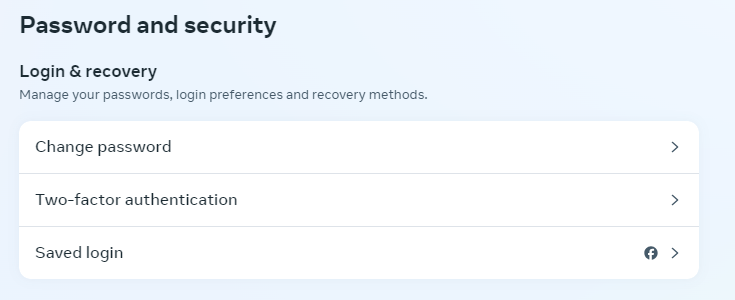
- You can manage your authorized devices in your account settings, where you won't need to use a login code. Reviewing this list and considering adding a second phone as a backup is a good idea.
When you set up two-factor authentication, select backup methods if you lose your phone or switch devices. Your choices include:
- Authentication app.
- Security key.
- Recovery codes.
How to Deactivate Two-Factor Authentication on Facebook Without Preferred Device
If you set up a backup method and can access your Facebook account from a different browser or device, follow these steps:
- Go to your Security and Login settings.
- Click on the field for two-factor authentication to open its settings.
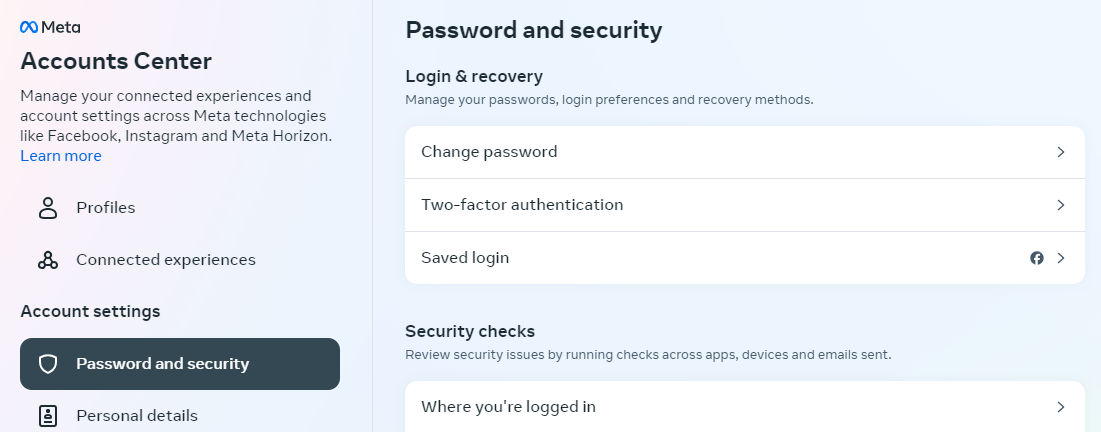
- Look for the option to turn off two-factor authentication and click on it.
- Confirm your choice to disable the feature.
How to Bypass Two Factor Authentication If You’re Locked Out
If you have not set a backup method and are locked out of two-factor authentication, then follow the steps below:
- Use your usual Facebook device to log in, so Meta can recognize it’s you.
- Follow the steps above to disable two-factor authentication.
- If you have lost your device and can not log in, Facebook will ask you to enter the code. Simple click on Didn’t receive a code.
- You will have these options.
- Approve from another device.
- Use a text message.
- Other options.
- Click on Get More Help.
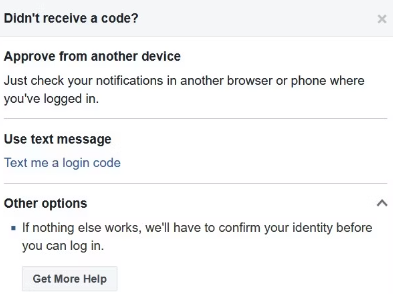
- You will get more options to prove your identity, including a passport, driving license, marriage certificate, etc.
- Just provide proof of your identity and Facebook will respond in a few days to recover your account.
How to Recover Your Facebook Account Without Logging In Through Two-Factor Authentication
- Instead of logging in, click on the Forgotten password? option.
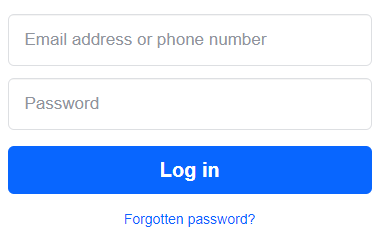
- Confirm your email address so Facebook can send you a password reset code.
- Check your email for the code sent by Facebook.
- Enter the code on the reset password page.
- Once your password is reset, Facebook should automatically log you in.
- Now, you can make any necessary changes to your two-factor authentication settings.
Frequently Asked Questions (FAQs)
-
How to recover a Facebook account without a two-factor authentication code?

Select "I don't have my phone" on the login screen if you can't access your phone or your two-factor authentication method. Tap "Contact Us" and follow the on-screen instructions.
Provide any requested information to verify your identity and recover access to your account. -
How do I turn off two-factor authentication on Facebook?
Go to the settings section of your Facebook account.
Click on "Security and Login."
Select "Use two-factor authentication."
Choose the "Disable two-factor authentication" option.
Your two-factor authentication will now be turned off on your Facebook account.
Got Your 2FA Turned Off?
According to Meta's updated settings page, any devices you've often used to access Facebook in the past two years will be trusted automatically.
Your phone and computer might not need a 2FA code to log in unless you decide to change this in your settings.
It is important to secure your privacy and account access. If you have turned off 2FA for any reason, be cautious about unauthorized access.
-
Simplify your online presence today
With PurePrivacy, make sure all your personal data remains safe without a hassle!


